blog
Git Log Graph
Review log graph feature and config.
Overview
Use a customized git log --graph command configured as an
alias for easy exploration of recent git history and related
branches. Leverage simpler git log and git show commands
to dig into specific commits.
Getting Started
The basic command git log --graph is verbose:
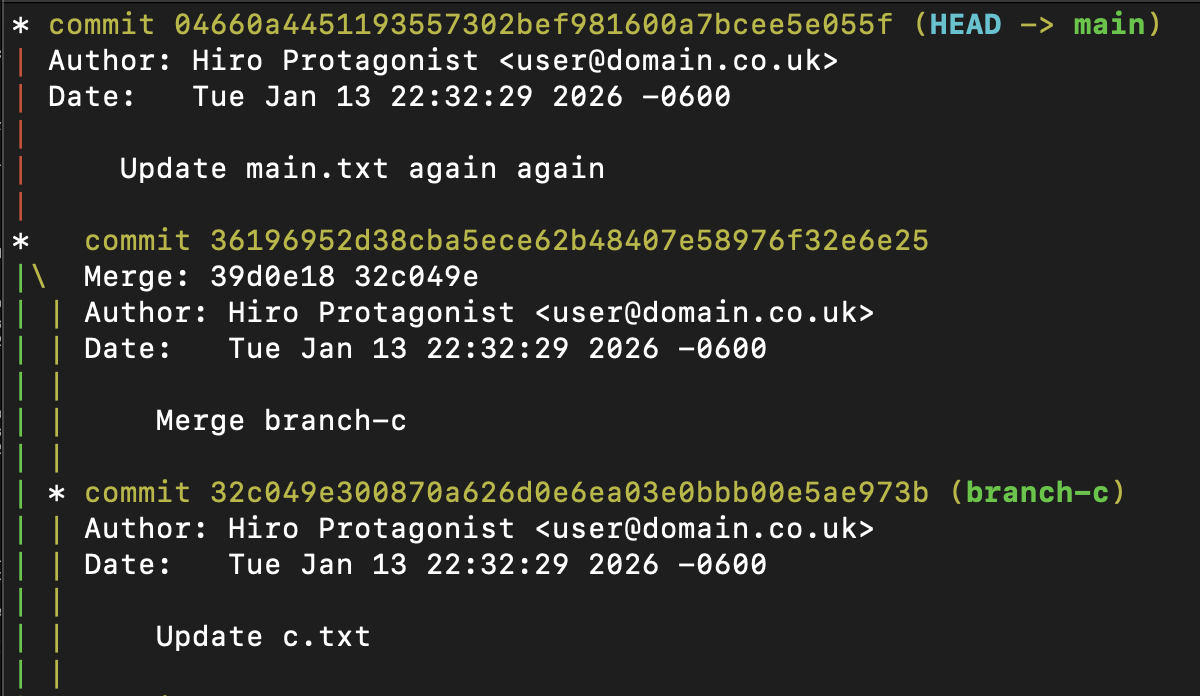
It’s very similar to the regular git log output. By adding a format
we can condense every commit to a single line. Try:
git log --color --graph --pretty=format:'%Cred%h%Creset -%C(yellow)%d%Creset %s'
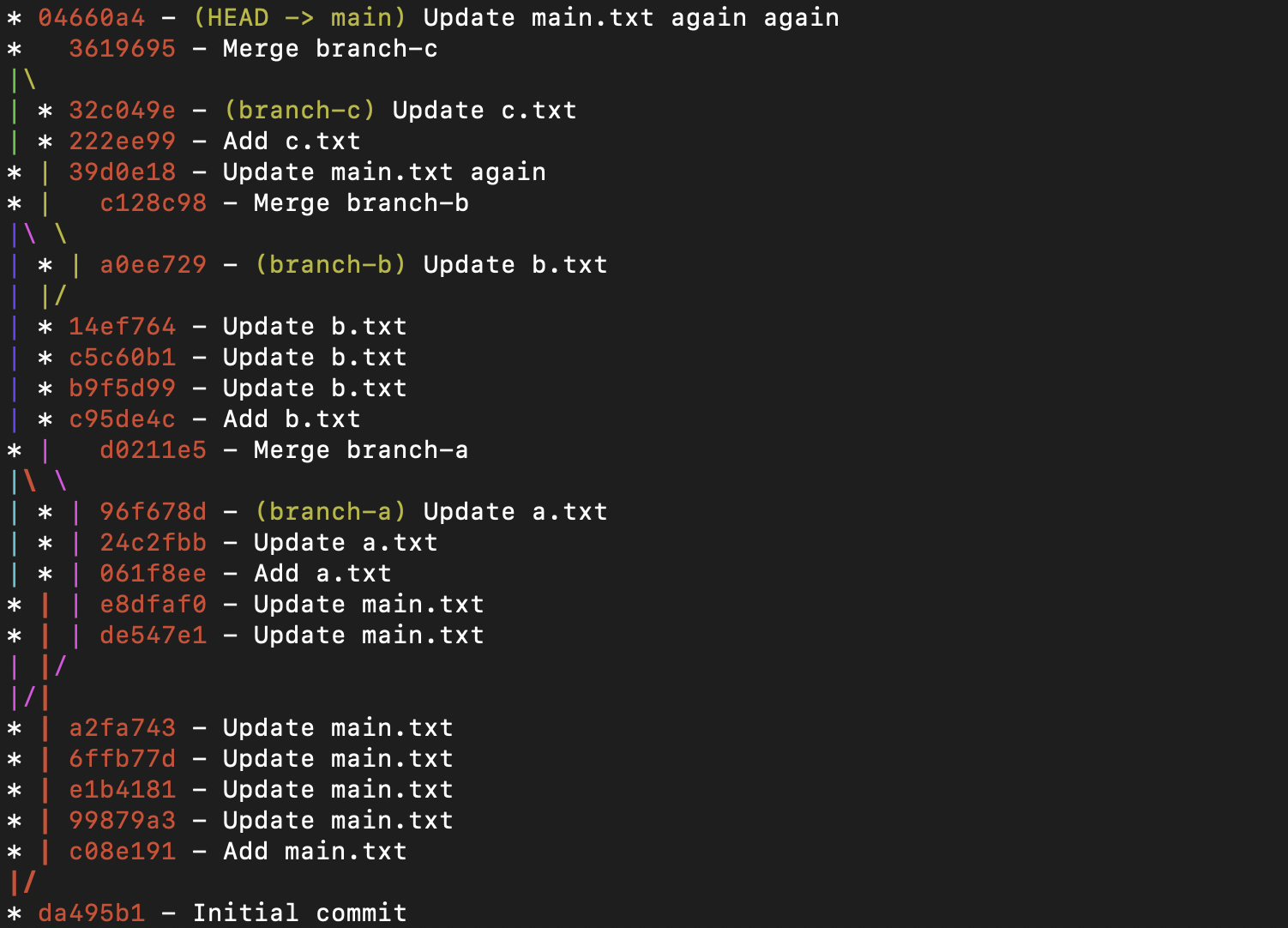
Try the following:
git log --color --graph --pretty=format:'%Cred%h%Creset -%C(yellow)%d%Creset %s %Cgreen(%cr) %C(bold blue)<%an>%Creset' --abbrev-commit
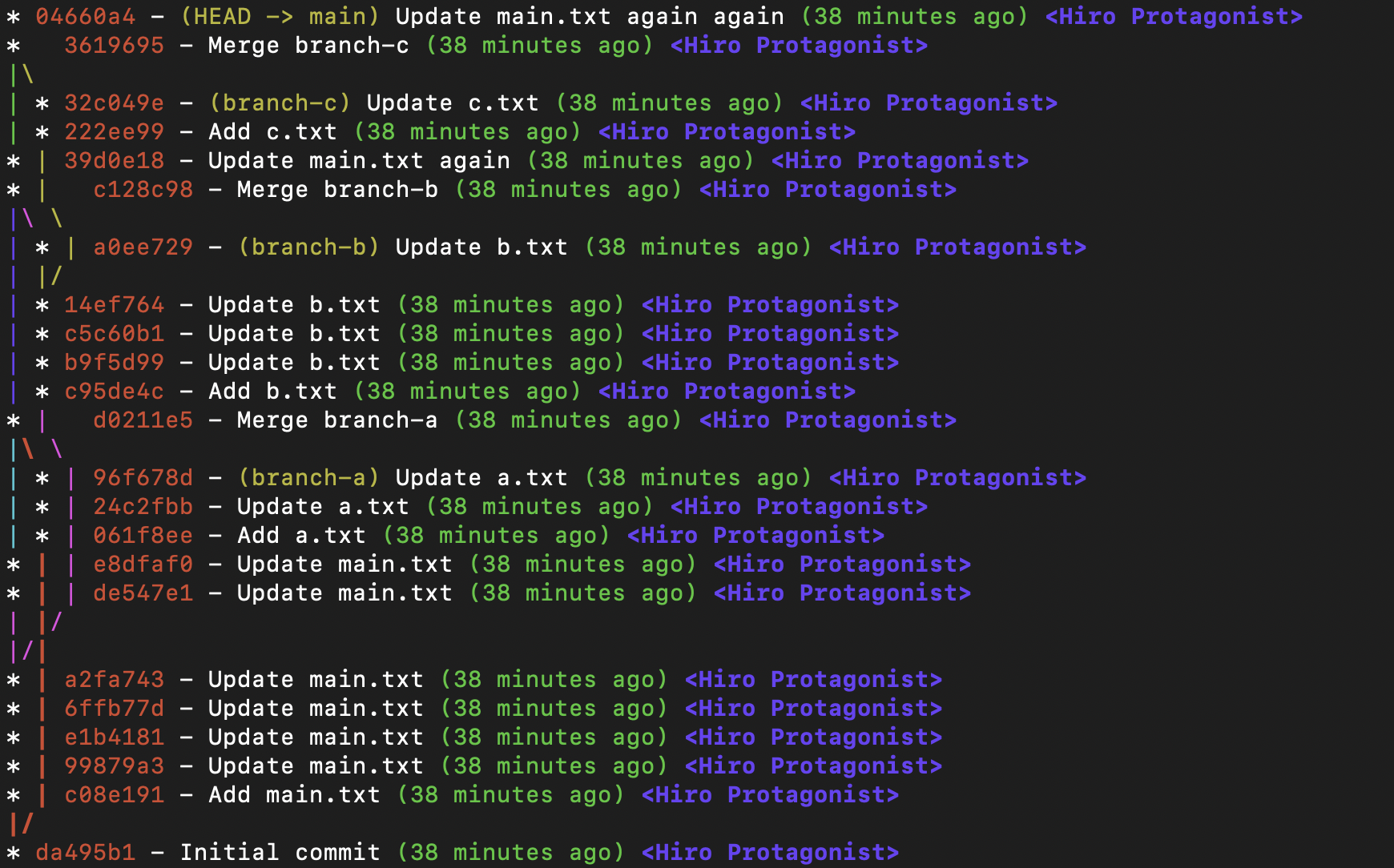
Now you get author and commit time details. For the rest of this article let’s create two aliases so we can easily run these commands:
lg- log graphlgm- log graph “minimal details”
~/.gitconfig:
[alias]
        lg  = log --graph --pretty=format:'%Cred%h%Creset -%C(yellow)%d%Creset %s %Cgreen(%cr) %C(bold blue)<%an>%Creset'
        lgm = log --color --graph --pretty=format:'%Cred%h%Creset -%C(yellow)%d%Creset %s'
My general recommendation is to start with the lg/lgm aliases to review at a high level
and then to drill into specific commits with git show.
$ git show 3619695
commit 36196952d38cba5ece62b48407e58976f32e6e25
Merge: 39d0e18 32c049e
Author: Hiro Protagonist <[email protected]>
Date:   Tue Jan 13 22:32:29 2026 -0600

    Merge branch-c
The --pretty=fuller option will give both author and commit details:
$ git show 3619695 --pretty=fuller
commit 36196952d38cba5ece62b48407e58976f32e6e25
Merge: 39d0e18 32c049e
Author:     Hiro Protagonist <[email protected]>
AuthorDate: Tue Jan 13 22:32:29 2026 -0600
Commit:     Hiro Protagonist <[email protected]>
CommitDate: Tue Jan 13 22:32:29 2026 -0600

    Merge branch-c
Example Repo
Here’s how I made a smallish repo with enough complexity to be interesting:
mkdir test
cd test
git init
echo test > test.txt
echo "# test" > README.md
git add .
git commit -m 'Initial commit'
git checkout -b branch-a
echo test > a.txt
git add a.txt
git commit -m 'Add a.txt'
echo 1 >> a.txt
git add a.txt
git commit -m 'Update a.txt'
echo 2 >> a.txt
git add a.txt
git commit -m 'Update a.txt'
git checkout main
echo 1 >> main.txt
git add main.txt
git commit -m 'Add main.txt'
echo 2 >> main.txt
git add main.txt
git commit -m 'Update main.txt'
echo 3 >> main.txt
git add main.txt
git commit -m 'Update main.txt'
echo 4 >> main.txt
git add main.txt
git commit -m 'Update main.txt'
echo 5 >> main.txt
git add main.txt
git commit -m 'Update main.txt'
git checkout -b branch-b
echo b1 > b.txt
git add b.txt
git commit -m 'Add b.txt'
echo b2 >> b.txt
git add b.txt
git commit -m 'Update b.txt'
git checkout main
echo 6 >> main.txt
git add main.txt
git commit -m 'Update main.txt'
echo 7 >> main.txt
git add main.txt
git commit -m 'Update main.txt'
git merge branch-a -m 'Merge branch-a'
git checkout branch-b
echo b3 >> b.txt
git add b.txt
git commit -m 'Update b.txt'
echo b4 >> b.txt
git add b.txt
git commit -m 'Update b.txt'
git checkout -b branch-c
echo c1 > c.txt
git add c.txt
git commit -m 'Add c.txt'
echo c2 >> c.txt
git add c.txt
git commit -m 'Update c.txt'
git checkout branch-b
echo b5 >> b.txt
git add b.txt
git commit -m 'Update b.txt'
git checkout main
git merge branch-b -m 'Merge branch-b'
echo 'more main' >> main.txt
git add main.txt
git commit -m 'Update main.txt again'
git merge branch-c -m 'Merge branch-c'
echo 'more main again' >> main.txt
git add main.txt
git commit -m 'Update main.txt again again'
Additional Features
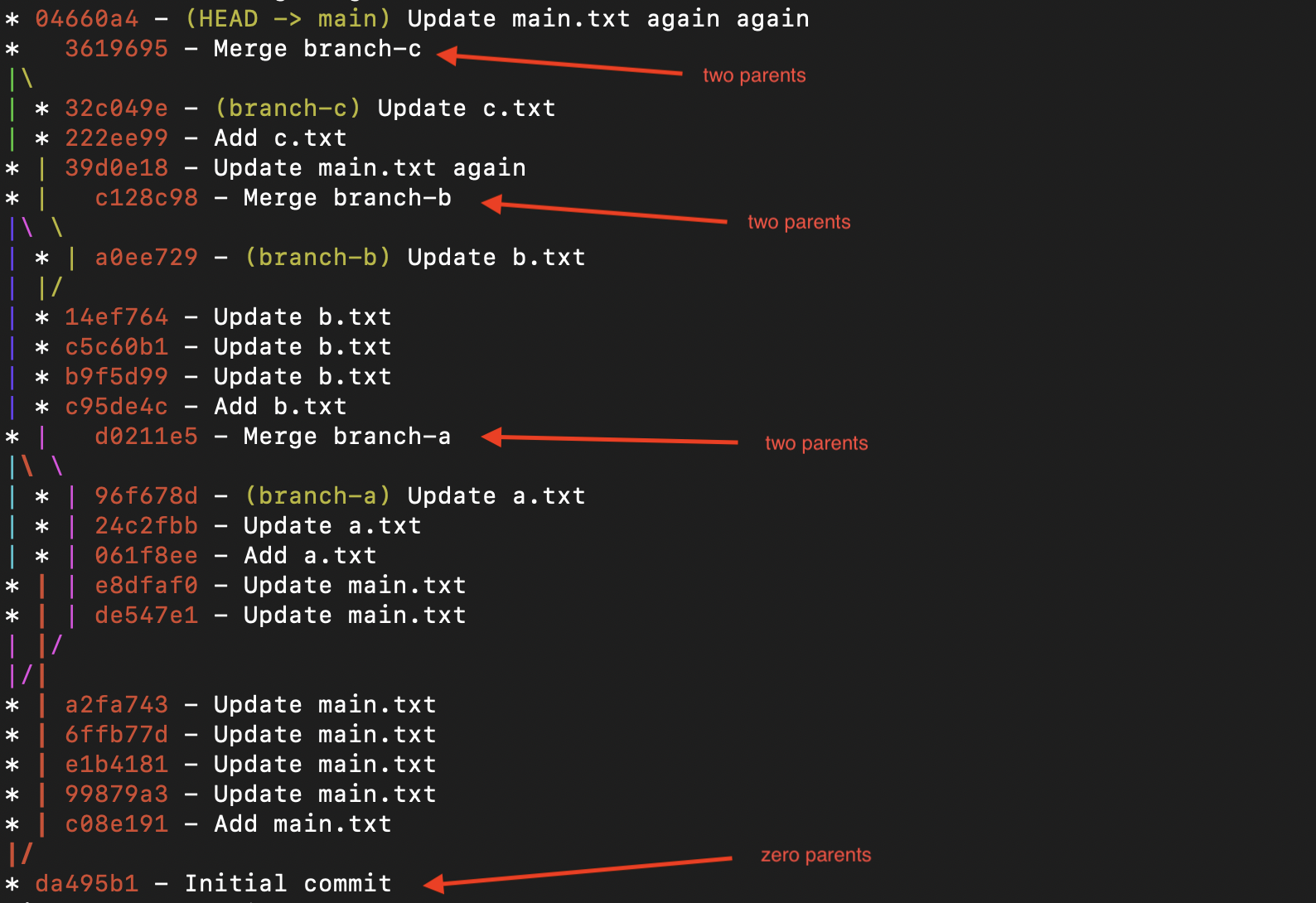
Only display merge commits with git lg --min-parents=2 (or git lg --merges):

Looking at the full listory git lg you can see these are exactly the commits that
have two parents:
Omit commits from the main branch when looking at a feature branch git lg main..HEAD.
In this case you have to have the branch checked out. Since all branches are merged into
main in the example above this gives empty output. Let’s add to our repo:
git checkout main
git checkout -b branch-d
echo "d" > d.txt
git add d.txt
git commit -m 'Add d.txt'
echo "1" >> d.txt
git add d.txt
git commit -m 'Update d.txt'
Now running git lg main..HEAD gives much more focused output:

Only display root commits: git lgt --max-parents=0:

Normally this shows only a single commit, but it’s possible to have more. A common reason for having these is using a tool like git-filter-repo to merge two separate git histories. Here’s a manufactured example:
mkdir test
cd test
git init
echo 1 > main.txt
git add main.txt
git commit -m 'Add main.txt'
git checkout --orphan a
echo 2 > a.txt
git add a.txt
git commit -m 'Add a.txt'
git checkout --orphan b
echo 3 > b.txt
git add b.txt
git commit -m 'Add b.txt'
git merge --allow-unrelated-histories a -m 'Merge branch a'
git merge --allow-unrelated-histories b -m 'Merge branch b'

That’s all for now!